Pizia Debugger
Pizia Debugger is a general debugging tool that allows you to execute functions or change variables values during runtime execution on phones or check the console log.
danger
The prefab requires LeanTween to be integrated and an EventSystem to be active on the scene (this is created automatically if you already have a canvas).
Integrate the debugger
Add the prefab from Assets/PiziaDebugger/PiziaDebugger.prefab to your first scene.
Showing the debugger
caution
Keep in mind that the game is not being paused while showing the debugger.
There are two ways to show the debugger:
- Swipe down with two fingers to open the debugger, and swipe up with two fingers to close it.
- Implementing a custom function to show the debugger.
public class SampleScript : MonoBehaviour
{
    public void Start ()
    {
        FindObjectOfType<PiziaDebugger>().ShowDebugger();
    }
}
Adding variables and functions
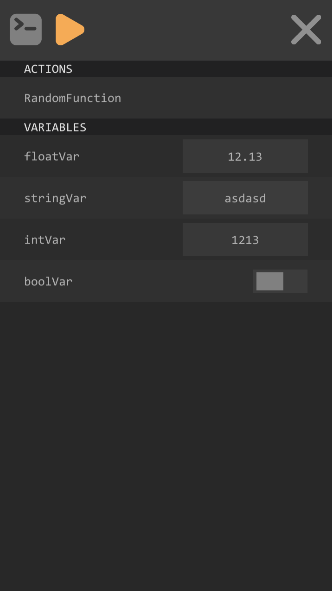
Use the attribute ConsoleField to display variables in the debugger and ConsoleFunction to display functions. The variables should be of type string, int, float or bool.
caution
The variables and functions should be declared as public.
public class SampleScript : MonoBehaviour
{
    [ConsoleField]
    public float floatVar = 12.13f;
    [ConsoleField]
    public string stringVar = "asdasd";
    [ConsoleField]
    public int intVar = 1213;
    [ConsoleField]
    public bool boolVar = false;

    [ConsoleFunction]
    public void RandomFunction ()
    {
        Debug.Log("printing something");
    }
}
Now you are ready to start modifying your variables on runtime or calling custom functions!.
The console
tip
To see the stack trace on your phone you have to enable Development Build under Build -> Build Settings. Remember to disable this for the final build
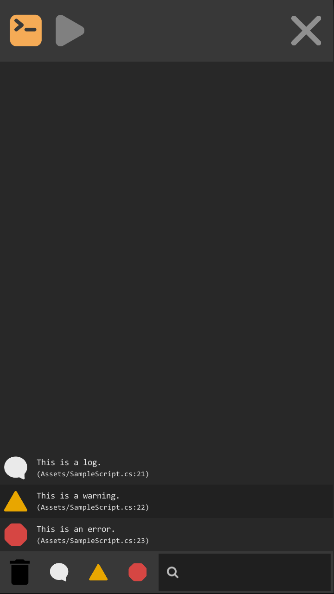
The console debugger will show you all your logs during gameplay, you can tap them to see a complete stack trace.
Variables Display
You can also display variable values automatically on the top left corner of your screen, this is useful if you want to check fast changing values or check values while playing. To show the variables you can use the attribute DebugField.
caution
The variables should be declared as public.
public class SampleScript : MonoBehaviour
{
    [DebugField]
    public int playerHealth = 10;
}
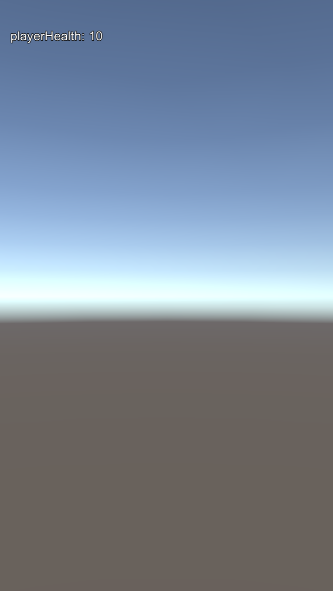
This will only show the variables that are enabled from the beginning of the scene (the Game Object should be active in the scene as well). If you want to display variables of instanced objects you have to refresh the variable list, you can do this with the following call.
public class SampleScript : MonoBehaviour
{
    public void RefreshVariables () {
        PiziaDebugger.instance.RefreshDebuggableVariables();
    }
}