Integration
Getting Started
Before even starting you need to add a couple variables to your PATH system (this is required by the Facebook SDK), you can do it doing the following steps:
- Download and install OpenSSL (use the 64 bit version).
- Download and install JavaSDK (JDK Download button and use the installer version)
- Add both installations to your PATH:
Go to
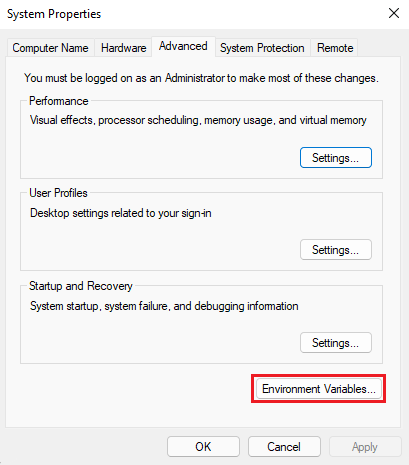
Control Panel > System > Advanced system settings > Environment Variablesand select the VariablePathin theSystem variableswindow and click Edit.
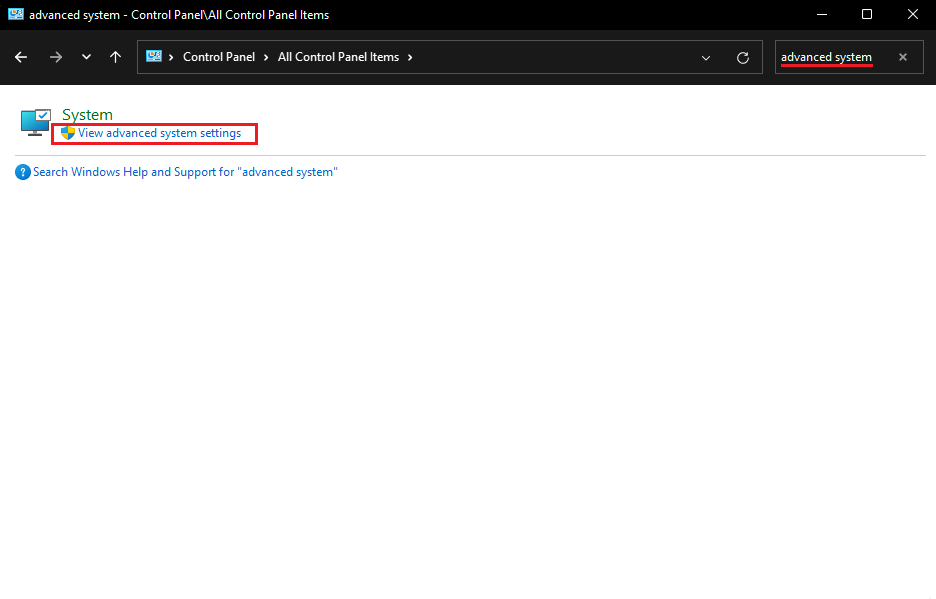
Now go to the Environment Variables
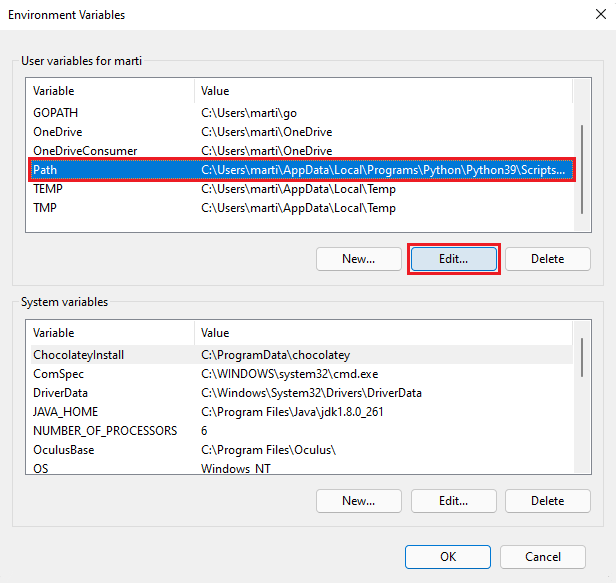
Click on Path and then click Edit...
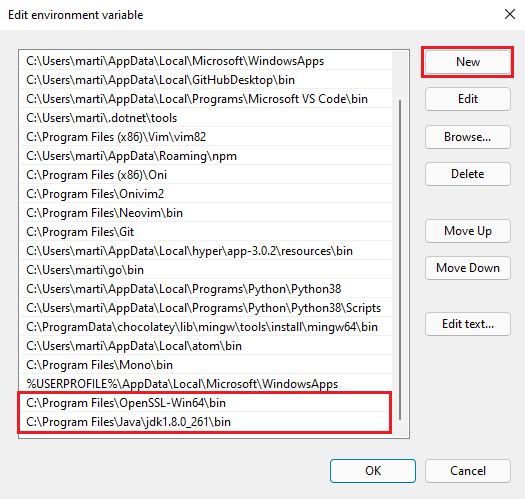
Click on New and add the bin of both softwares.
You have to restart your computer for this variables to work, so do it before trying to build.
caution
Your build platform should be Android or iOS before importing the package.
Integrate the SDK into your game
Now you can Download and import the SDKManager to your Unity Project. The package will automatically install several SDKs so it might take a while to load. Several pop ups are going to appear during the installation process, confirm all of them.
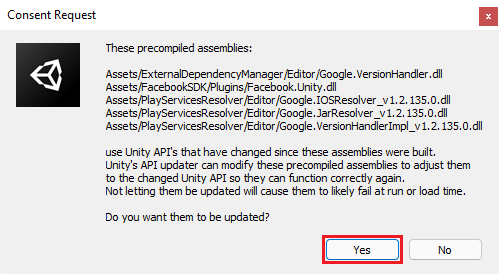
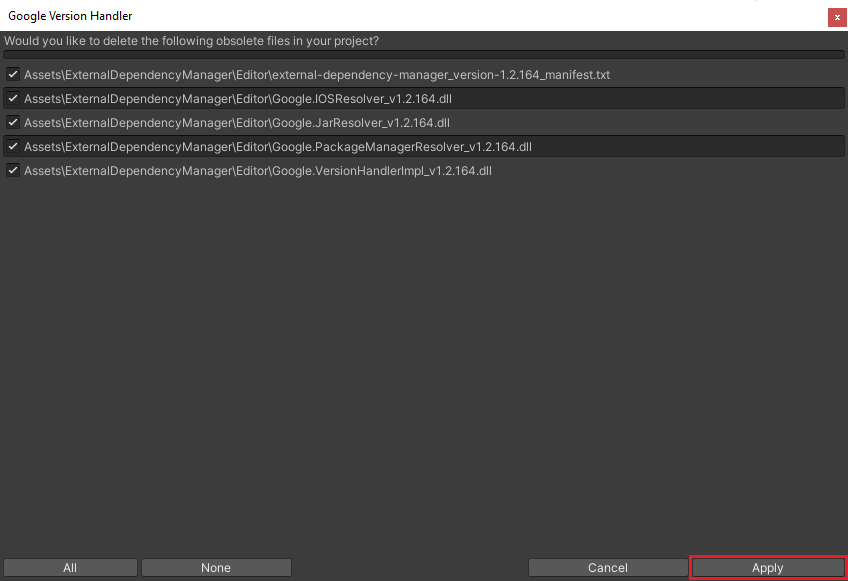
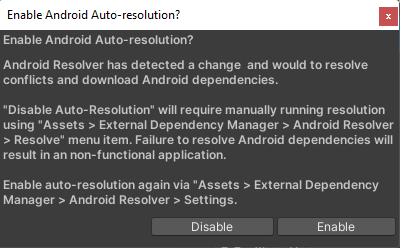
Now add the prefab from Assets/SDKManager/SDKManager.prefab to your first scene.
Implement in-game events
You have to implement three in-game events that are going to be used to check the game performance.
- Level Started: when the player gains control of the input and is actually playing the level, not when starting the scene.
public void LevelStarted ()
{
    int currentLevel = GameManager.GetCurrentLevel();
    SDKManager.instance.LevelStarted (currentLevel);
}
- Level Complete: when the player completes the level successfully, before increasing the level count.
public void LevelVictory ()
{
    int currentLevel = GameManager.GetCurrentLevel();
    int tries = GameManager.GetTriesForThisLevel();
    SDKManager.instance.LevelComplete (currentLevel, tries);
    GameManager.SetLevel (currentLevel+1);
}
- Level Failed: when the player fails the level (if there is no fail state on your game, ignore this call).
public void LevelFailed ()
{
    int currentLevel = GameManager.GetCurrentLevel();
    int tries = GameManager.GetTriesForThisLevel();
    SDKManager.instance.LevelFailed (currentLevel, tries);
}
Prepare the build
Before building you have to clean your project files, you can do it easily going to Pizia -> Fix Build Files. Wait for it to resolve all issues and then you are good to go!
If you still have building issues, please refer to the Bug Solving documentation.